

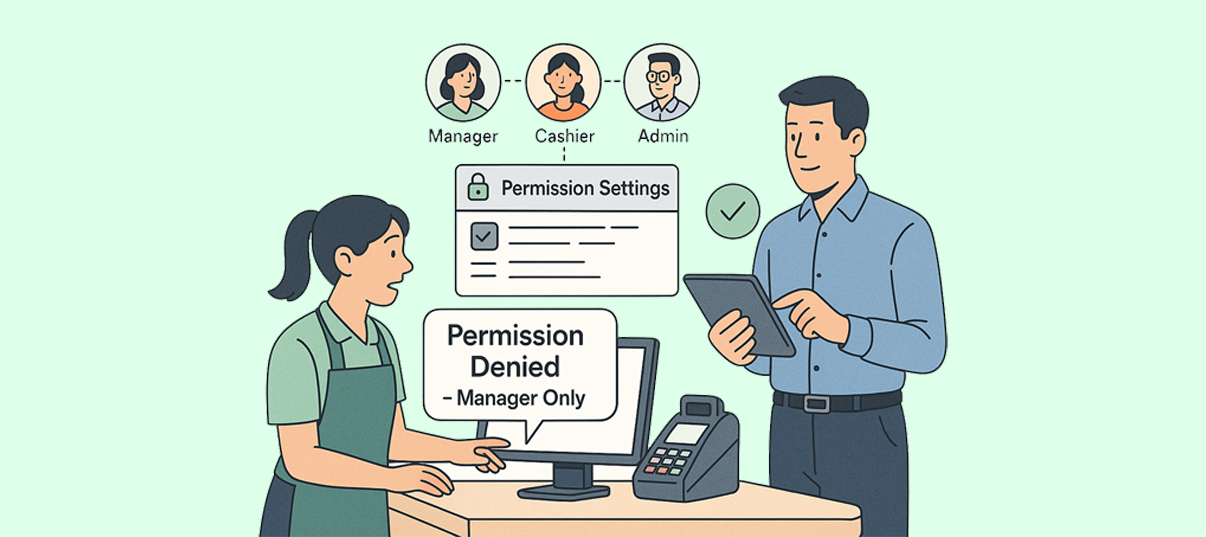
In many businesses, giving staff the ability to issue discounts can feel like a gamble. A small gesture of goodwill—slashing 10% here or waiving a fee there—can quickly add up to serious margin loss or even abuse. This concern highlights a common challenge: how to empower employees without risking revenue. The answer lies in well-configured ERP discount permissions, a feature that allows managers to define who can do what, when, and how far. This article will explore how ERP systems solve the “trust” issue, ensuring discounts are used strategically and transparently.
This article will explore:
- Why unchecked discounting can damage your bottom line
- Key ERP features that govern discount permissions
- How to set up a tiered approval workflow
- Real-world examples of permission rules in action
- Best practices for training and monitoring
By the end, you’ll see that trust is not blind—it’s built into your system.

1. When Discounting Becomes Risky
Defining clear discount tiers is the first step in setting up effective ERP discount permissions, aligning them with business goals.
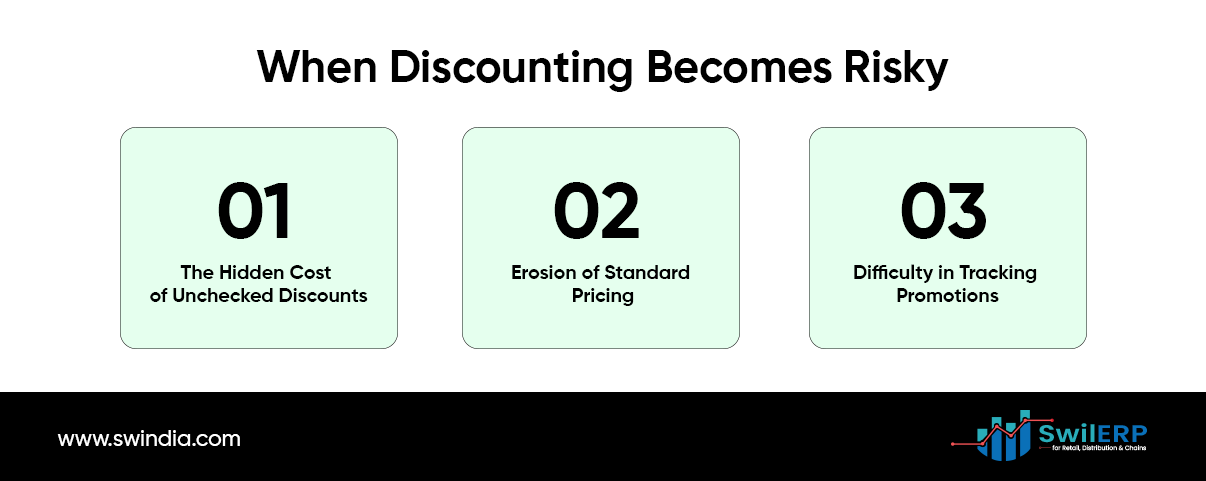
A. The Hidden Cost of Unchecked Discounts
At first glance, a 5% discount seems harmless. You might think: “We’re winning a deal; customer leaves happy.” But multiply that by dozens of daily sales, and within a month you could be giving away thousands of dollars. More troubling, if staff know they can apply discounts at will, they may start using them to cover errors, to help friends, or simply to hit personal targets. The hidden cost of unchecked discounts can quickly erode profits, making robust ERP discount permissions a necessity.
B. Erosion of Standard Pricing
Allowing arbitrary markdowns creates an inconsistent experience. One customer hears about a secret colleague code; the next pays full price. This breeds distrust and can push buyers to haggle or shop elsewhere.
C. Difficulty in Tracking Promotions
Outside of a controlled sales campaign, ad-hoc discounts are hard to record. Without clear data, managers cannot tell which products underperform or which clients truly deserve the deal.
2. How ERP Discount Permissions Build Trust
An ERP system centralizes inventory, sales, finance, and customer data. Implementing clear ERP discount permissions helps maintain standard pricing and prevents unauthorized erosion of margins. Within that unified platform, you can set permissions to restrict who can create orders, view cost prices, or apply discounts. How ERP discount permissions build trust: by defining clear tiers, assigning roles, and setting up approval workflows. Here are the crucial features:
A. Role-Based Access Control
Assigning role-based permissions ensures that only authorized staff can apply specific discounts, a core aspect of ERP discount permissions.Assign each employee to a role, such as Sales Associate, Supervisor, or Finance Manager, and grant each role specific rights. For example:
- Sales Associates: Can view list prices and suggest discounts but cannot finalize price changes over a set threshold.
- Supervisors: Can approve or override small discounts (e.g., up to 10%).
- Managers: Have full authority to apply larger price adjustments, subject to audit logs.
B. Discount Approval Workflows
A workflow routes any discount request above a base limit to the next level of approval. The steps might be:
- Sales Associate proposes a discount.
- If discount ≤ 5%, system accepts it automatically.
- If discount > 5% but ≤ 15%, it routes to a Supervisor for review.
- If discount > 15%, it requires Manager approval.
Each approval is recorded with date, time, and the approver’s name. Unapproved requests stay pending and cannot be processed at the checkout.
C. Conditional Permissions
Modern ERPs allow conditions based on customer type, order volume, or product category. For instance:
- Key Accounts may receive up to 20% discount automatically because of their contract terms.
- Retail Customers never get more than 5% without manager consent.
- Clearance Items have their own discount schedules controlled by the Inventory team.
D. Audit Trails and Reports
Every change to a price or discount is logged. You can generate reports showing who gave what discount, on which date, and for which order. Regular review of these logs uncovers unusual patterns—say, an associate frequently bypassing supervisors or applying maximum discounts at the end of each month.
3. Designing a Tiered Approval Workflow
An effective workflow balances speed for routine discounts and oversight for larger ones. Here is a step-by-step guide to crafting your own:
Step 1: Identify Your Discount Thresholds
Review your current pricing strategy. What is the normal range of minor discounts? Perhaps 2–5% for good will, 10% for bulk purchases, and larger cuts only for special promotions. Create three tiers:
| Tier | Discount Range | Approval Required |
| Routine | 0–5% | Automatic |
| Supervisor | >5–15% | Supervisor or above |
| Managerial | >15% | Manager or Finance Director |
Step 2: Map Roles to Approvals
Define which roles fit each tier. Make sure no role overlaps in unexpected ways. Test your definitions:
- Sales Rep: Routine tier only.
- Supervisor: Routine + Supervisor tier.
- Manager: All tiers.
Step 3: Set Time Limits on Approvals
Encourage prompt decisions by adding deadlines. If a Supervisor does not respond within four business hours, the request escalates to the manager automatically. This avoids bottlenecks that frustrate customers.
Step 4: Automate Notifications
Configure the system to send alerts:
- When a discount request enters someone’s queue.
- When it’s approved or rejected.
- When it remains pending too long.
Step 5: Test and Refine
Run pilot tests with sample orders. Check for loopholes—like a supervisor adding their own note and approving discounts above their authority. Adjust permissions until the workflow works seamlessly.
4. Real-World Examples
Example A: The Electronics Distributor
An electronics wholesaler faced margin erosion after its regional sales team offered steep discounts to clear old stock. By implementing tiered permissions, they set a 7% auto-approve limit, 7–20% for Sales Managers only, and anything above 20% for the CEO. Within three months, unplanned discounts dropped 60% and gross margin recovered by 3 points.
Example B: The Fashion Retailer
A boutique clothing store allowed floor staff to suggest discounts during peak season. Unfortunately, some staff colluded with friends to get steep markdowns for personal purchases. After turning on audit logging and restricting staff-level approvals to 3%, suspicious patterns appeared: one employee had 50% discounts outside standard promotions. The manager addressed the issue immediately, saving the company thousands in improper markdowns.
5. Best Practices for Training and Monitoring
A. Educate Your Team
Permissions only work if employees understand why they are in place. Hold training sessions to explain:
- How the workflow protects the company and supports fair treatment of customers.
- Where to find tutorials on using the ERP’s approval features.
- Whom to contact when urgent approvals are needed.
B. Regularly Review Reports
Schedule monthly or quarterly audits of discount logs. Look for:
- High frequency of approvals near threshold limits.
- Unusually fast or slow approval times.
- Patterns tied to specific associates.
C. Adjust Thresholds Over Time
As your business changes, so do acceptable discount levels. For a new product launch, you might allow slightly deeper cuts under supervision to attract early buyers. Refresh your workflow settings to match current goals.
D. Encourage Feedback
Invite staff to share their experience with the workflow. Are approvals too slow? Are the thresholds too low? Input from daily users helps you refine processes.
6. Balancing Control with Customer Service
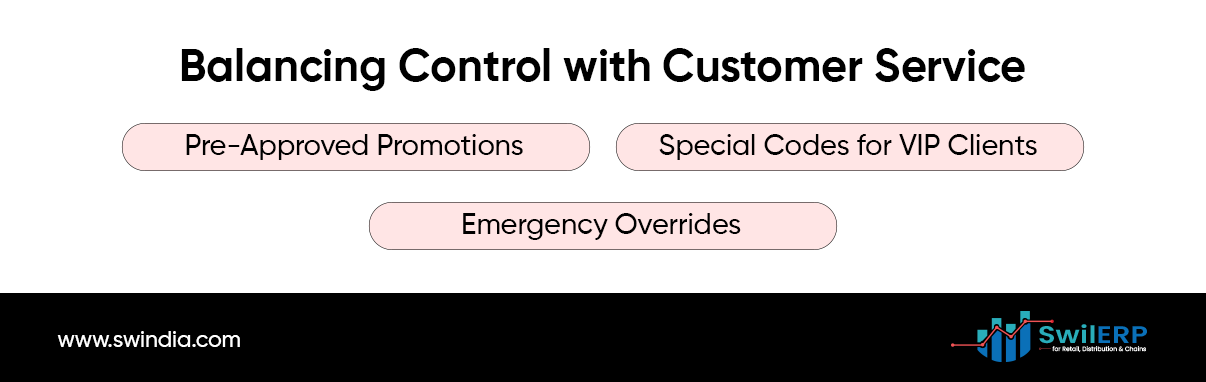
While control is essential, you do not want cumbersome delays to cost you sales or frustrate buyers. Here are some tips:
- Pre-Approved Promotions
Load standard seasonal or volume-based discounts into the system in advance. These flow automatically without approvals. - Special Codes for VIP Clients
Create customer profiles with preset discount levels. When the ERP recognizes the client, it applies the correct rate instantly. - Emergency Overrides
In rare critical situations (system outages, high-value deals), grant a temporary “Override” permission to a senior manager. After the event, review all overrides for compliance.
7. Looking Ahead: Advanced Permission Strategies
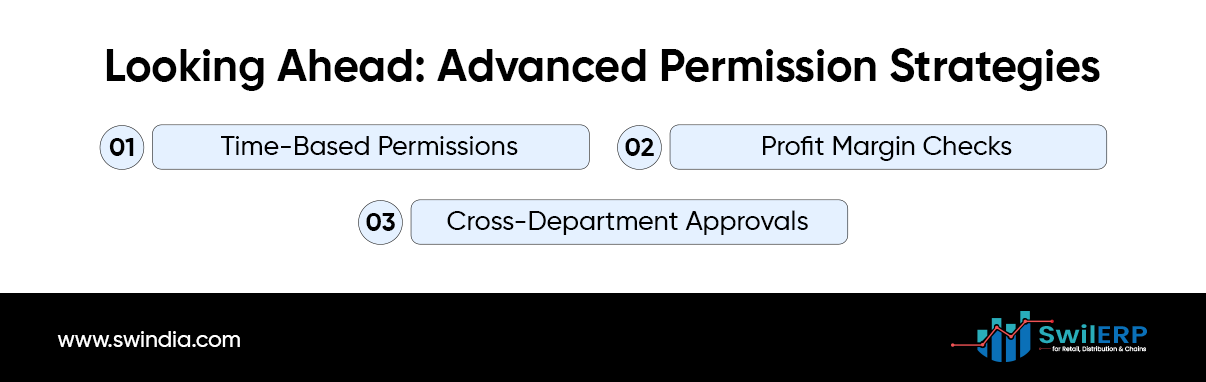
Once you master basic tiers, consider more sophisticated controls:
- Time-Based Permissions: Allow higher discounts only during off-peak hours to boost sales when foot traffic is low.
- Profit Margin Checks: The system blocks any discount that would drop the gross margin below a set floor.
- Cross-Department Approvals: For complex orders (e.g., combining products and services), require sign-off from both Sales and Finance departments.
These advanced rules help you fine-tune the balance between agility and oversight.
Conclusion: Trust Built into Your System
Granting staff the right to apply discounts no longer needs to be a leap of faith. By using ERP permissions to define clear roles, set tiered approval workflows, and record every action, you create a structured environment where decisions are transparent and fair. Your team gains the freedom to serve customers promptly, while you retain the controls that protect margins and ensure consistency.
Key Takeaways:
- Define clear discount tiers aligned with business goals.
- Assign roles carefully to limit who can approve each tier.
- Automate notifications and escalations to speed decisions.
- Review logs regularly to spot unusual patterns.
- Train your staff so they understand both the “how” and the “why.”
With these measures in place, you can trust your staff to delight customers with appropriate discounts, knowing your system maintains the guardrails.
Have you set up ERP discount permissions in your company? Share your experience or questions below.





Nice